During the development and research phase of our recent projects, our team explored the capabilities of several speech transcription services and artificial intelligence to handle such data. We aimed to develop an application with live transcription capabilities for meetings, along with the ability to transcribe previously recorded meetings, regardless of whether they were locally downloaded or transcribed via a link. It was crucial for the app to support different subtitle languages and accommodate various subtitle file formats. Another project focused on establishing a workflow to decode audio recordings of dialogues. Once transcribed, this textual information was then processed based on a predetermined algorithm.
Now, in the second part of the cycle of articles about voice transcription with the help of AI, we will touch in general one of the famous services for speech recognition — Speech-to-Text from Google. We will discover for you one of the simplest ways to perform your first transcription.
Short plan, what we will do to transcribe audio into text:
- Log in to Google: If you already have an existing account on Google, log in using your credentials. If not, you need to create a new account on Google.
- Create and process transcribing task: adjust all needed settings and prepare file for transcription.
Let’s start with Google Transcribe API!
Log in to Google
- Log in to the Google account.
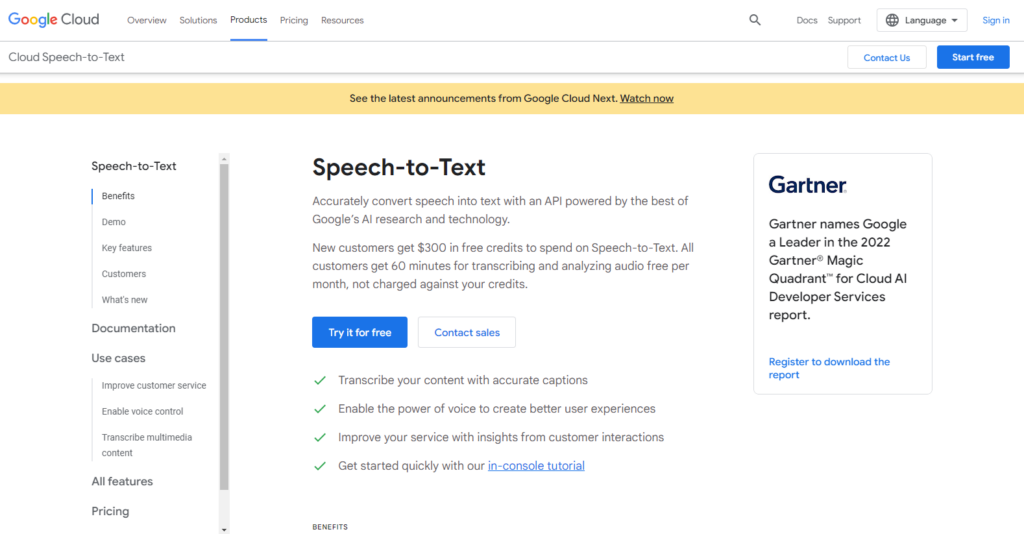
First of all, you need to have an account in Google and log in. - Then, to access the Google Cloud Speech-to-Text service, you need to visit the official website of Google Cloud (link: https://cloud.google.com/speech-to-text).
3. Select or create a work project.
And, if you have already logged in, choose (or create) a work project in the Transcriptions tab. For this, select Transcriptions, add or select a workspace and click the “Submit” button.
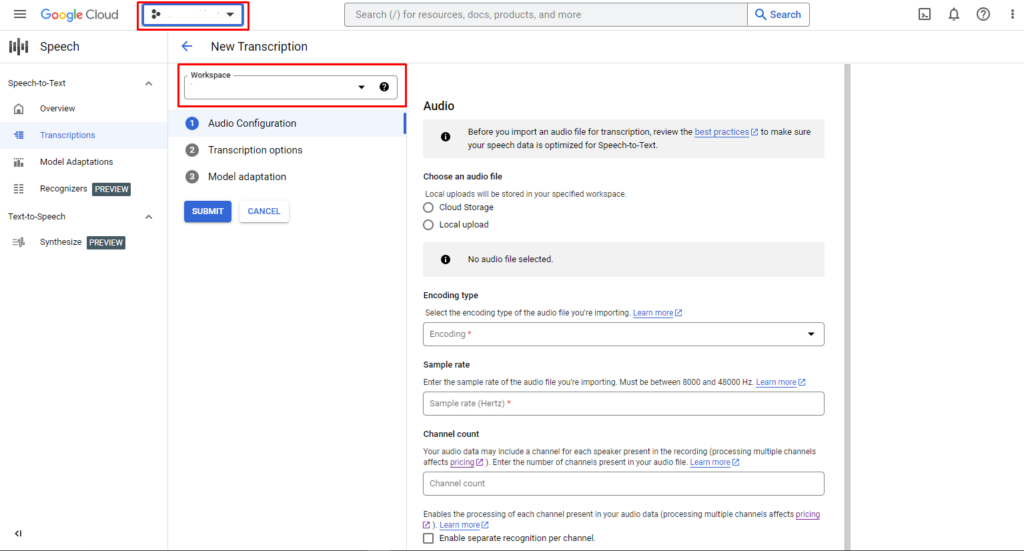
you will see next screen with the instructions for transcribing a file:
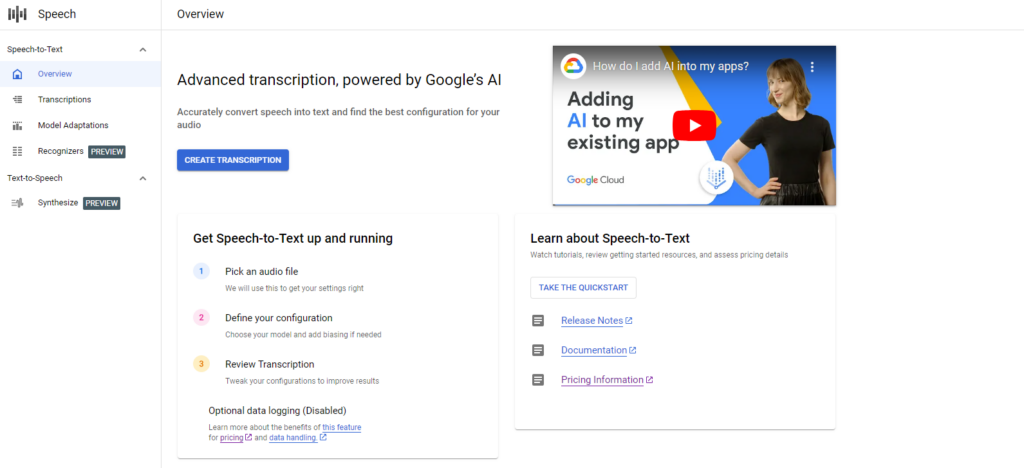
Create and process transcribing task
4. Click the “Create transcription” button.
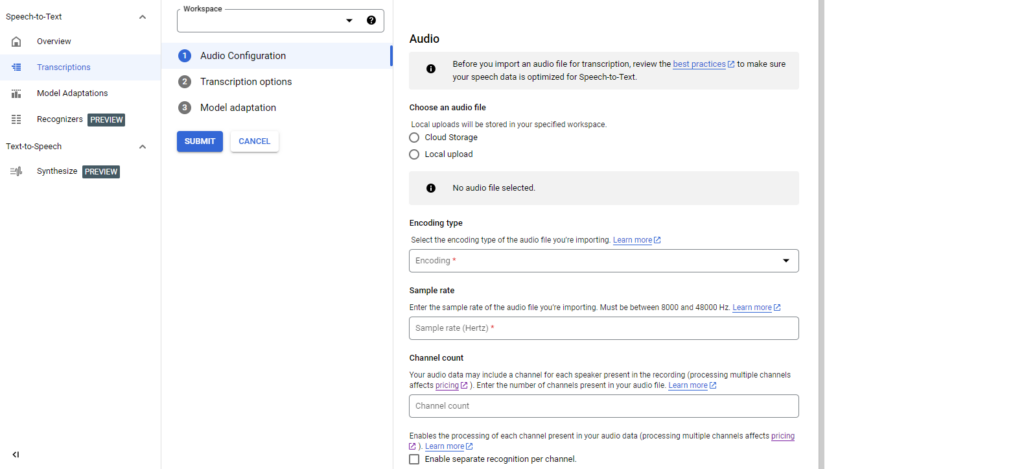
5. Fill in the necessary fields for transcription.
Speech-to-Text service has two ways of choosing audio for transcription: local or cloud. For our example, let’s choose local. After uploading the file, we got the following screen:
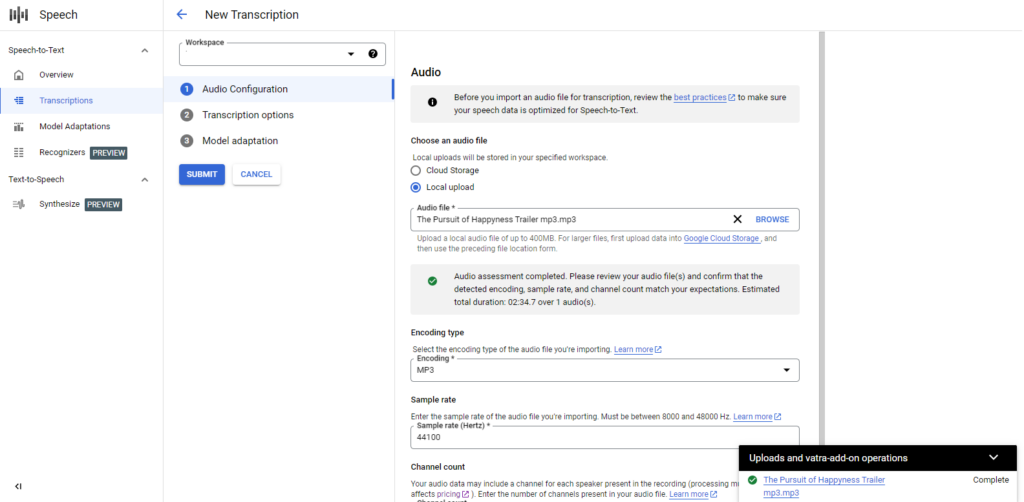
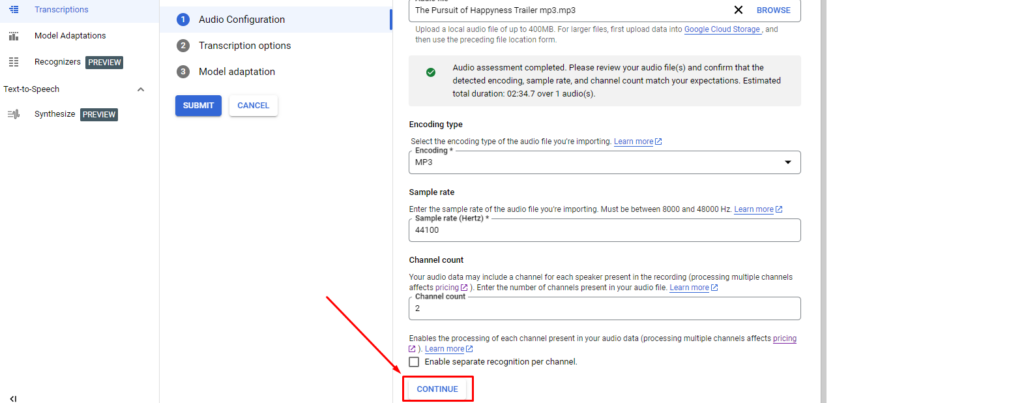
Click the “Continue” button for the next step.
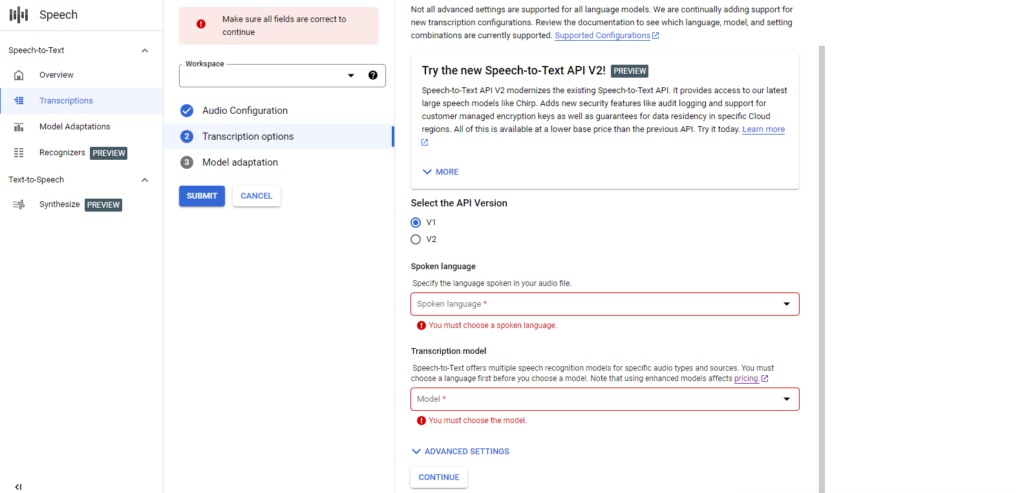
6. Select language.
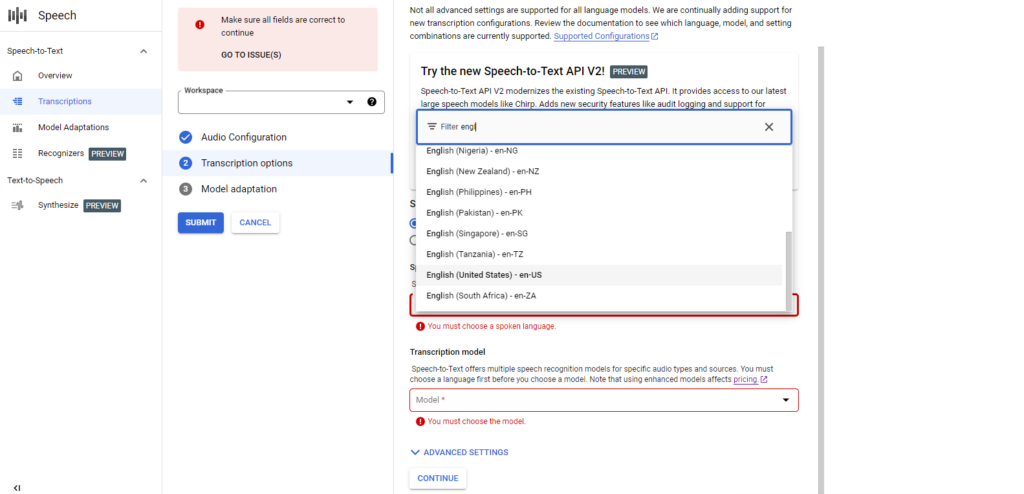
7. Select Transcription model.
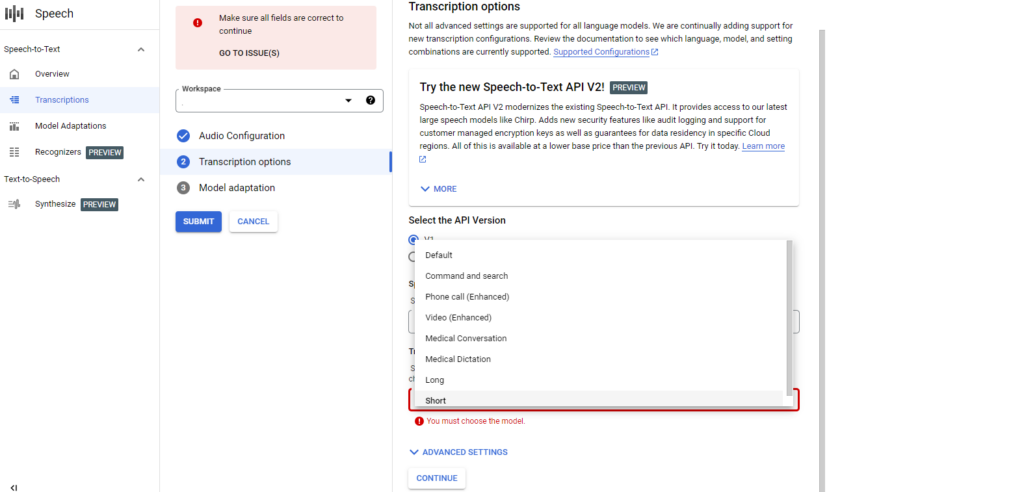
And click the “Continue” button.
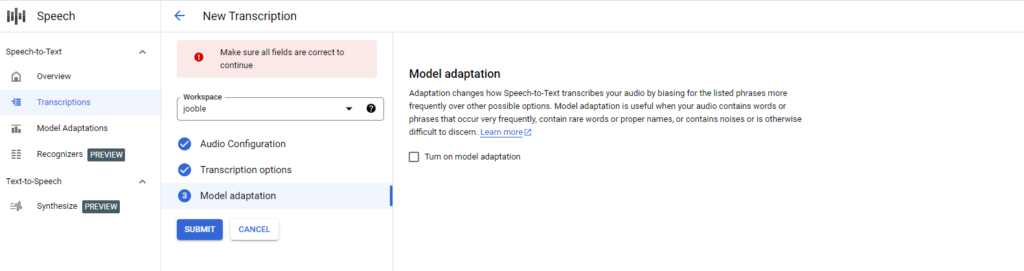
- Click the “Submit” button.Our first transcription has started!

After the process stops, click the name of the file — the service will open the transcription details. You can see general information in the “Configuration” block and can play your file again using the integrated player.
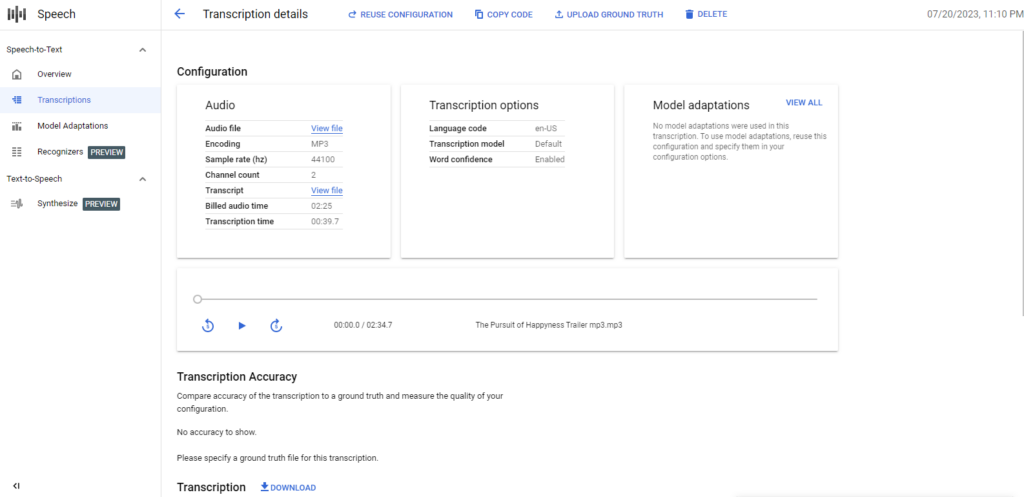
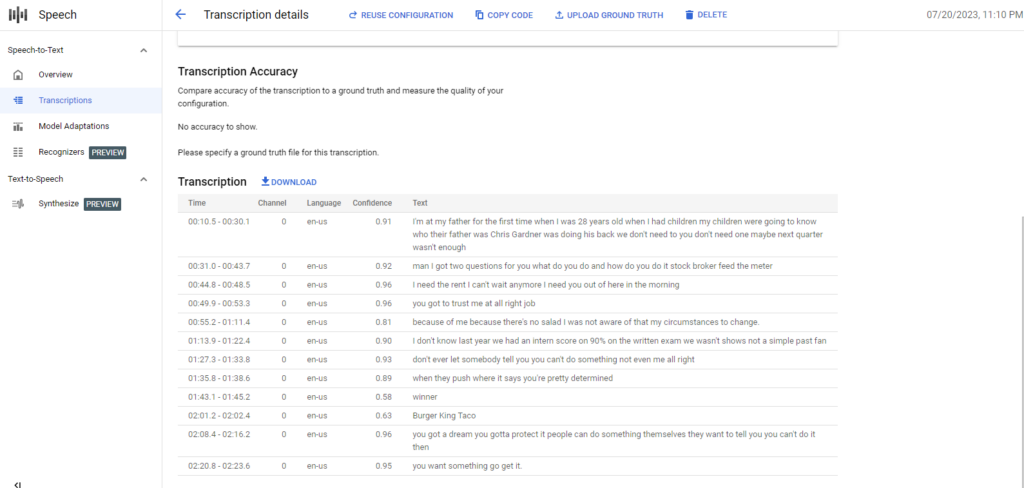
If you scroll below, you can see all transcription details in the “Transcription Accuracy” block and the entire transcription text with timecodes in the “Transcription” block. The option to download your transcription text is also available.
Conclusion
Today we have discovered one of the most usable and simple use cases of Speech-to-Text from Google to help you learn the basics. We already told you about Microsoft Azure (Speech to Text), and in our future blogs, we will show you more other effective solutions in this area of AI usage, such as AWS Transcribe and Whisper from OpenAI. If you need professional help with the design of complex solutions for integrating with your existing or future applications (or development application from scratch), please contact us for detailed information and services.